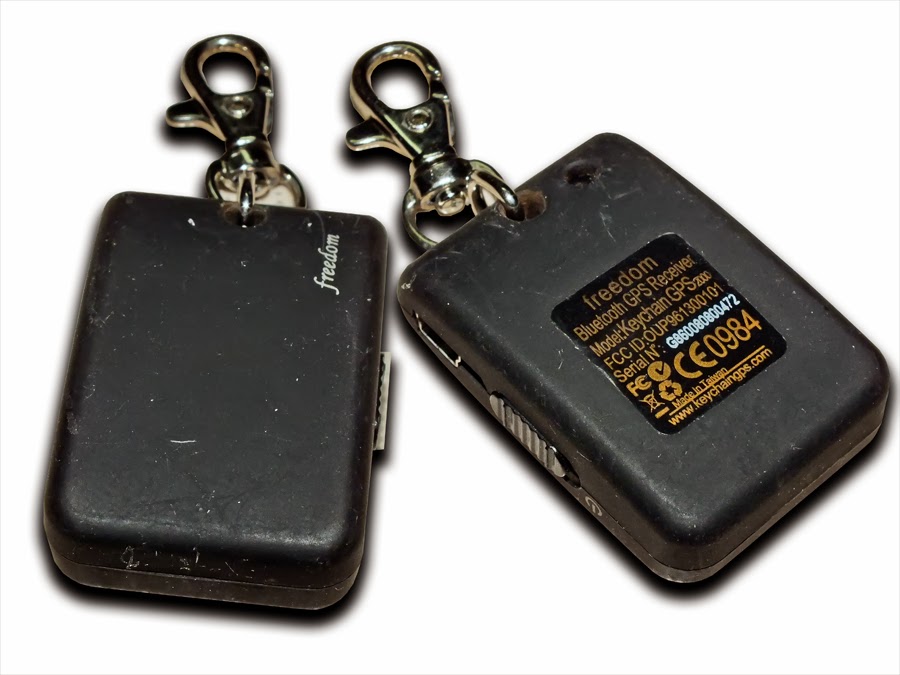
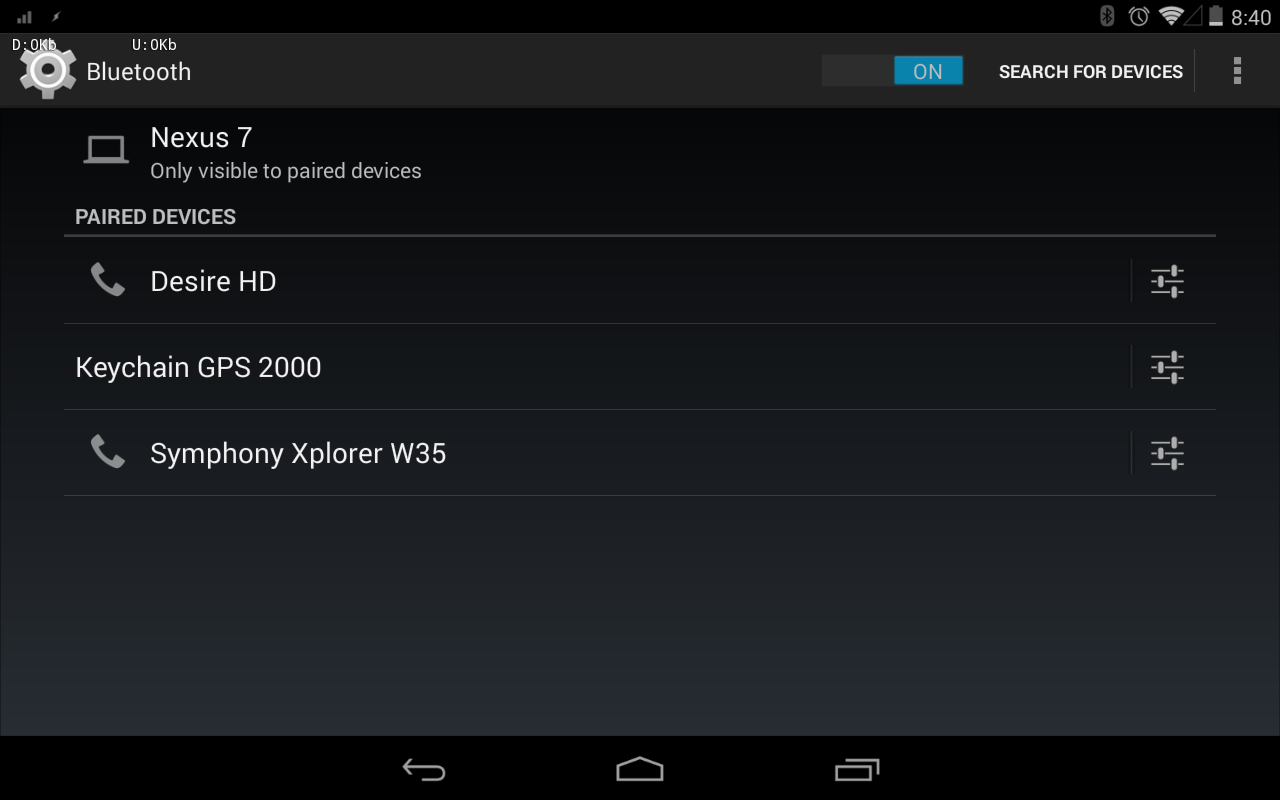
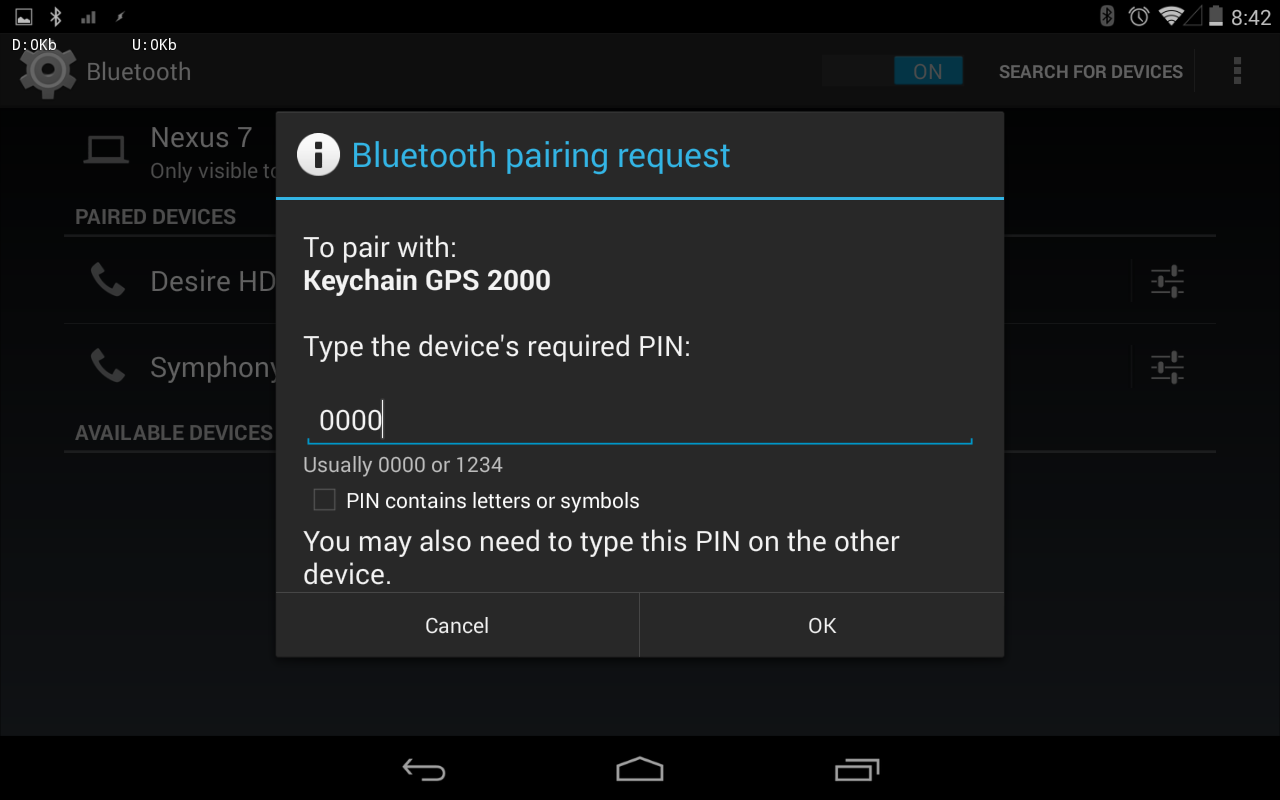
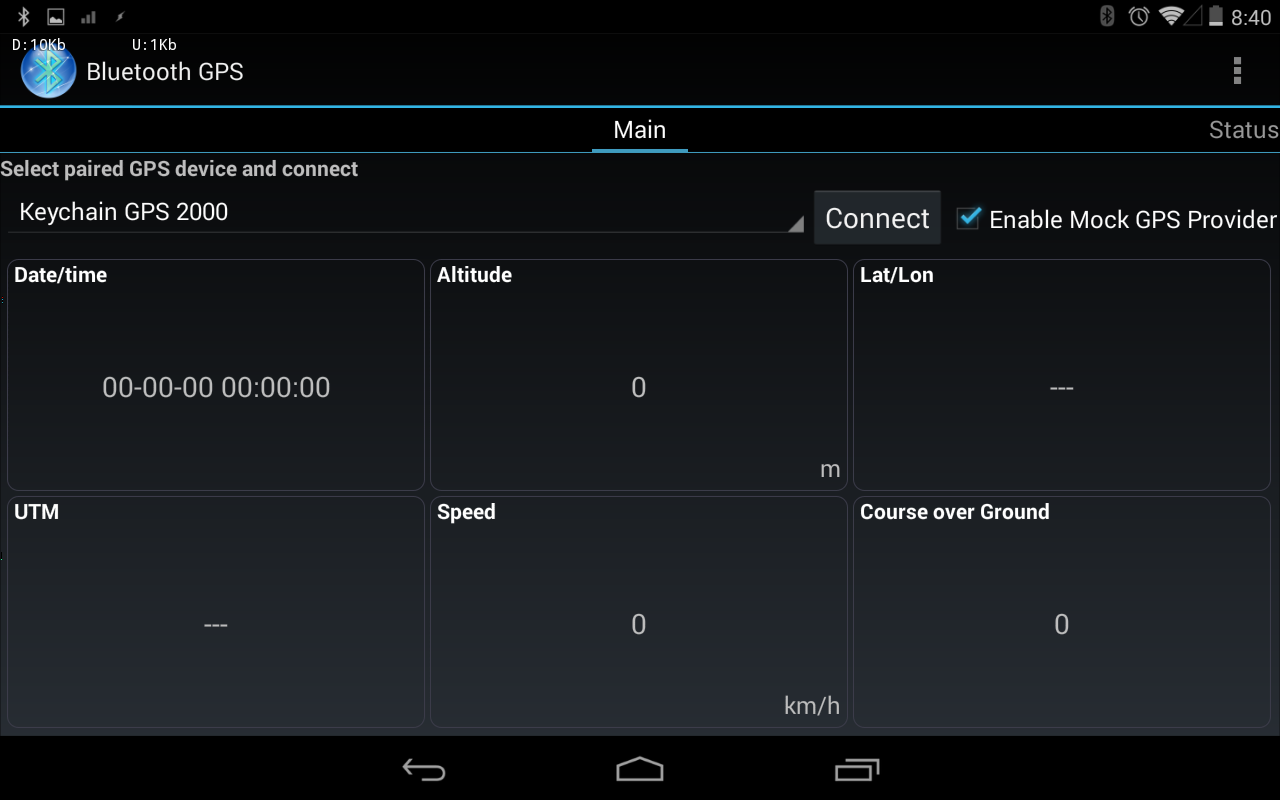
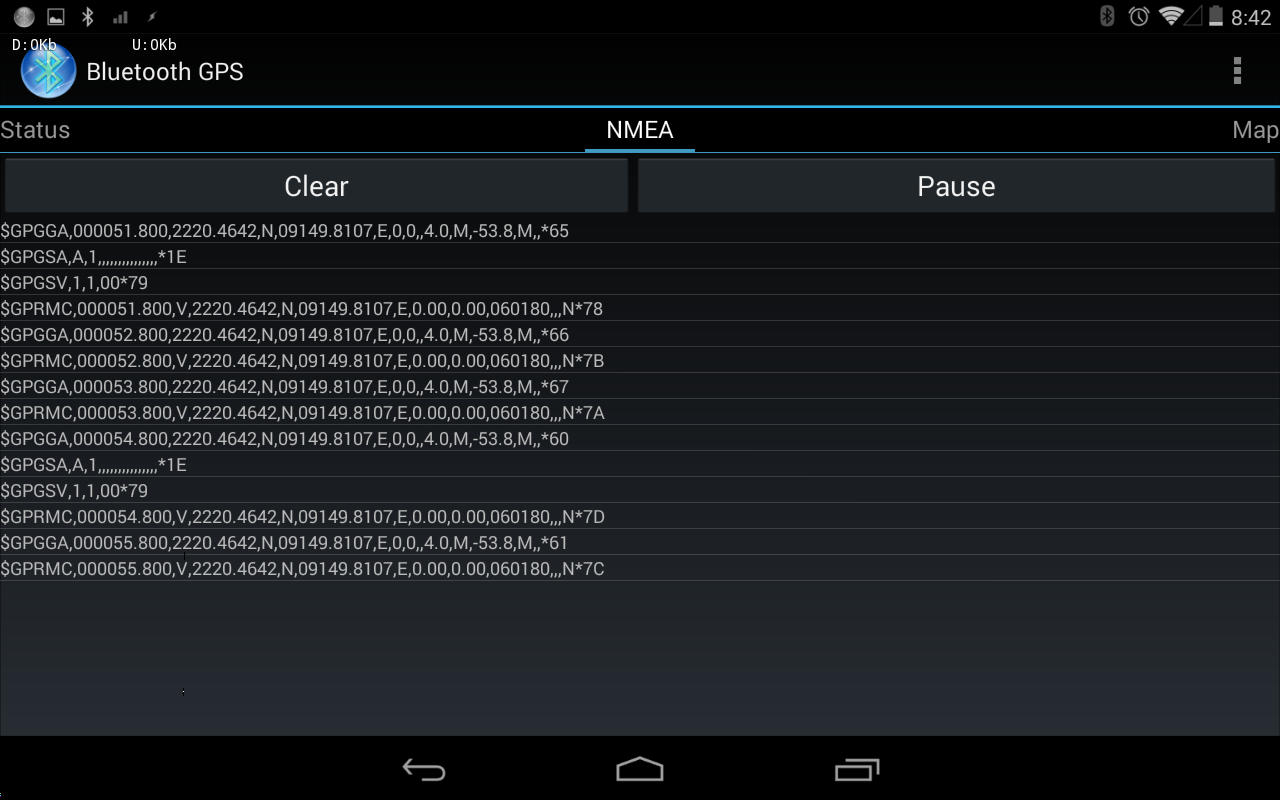
The very first post on this blog Using an external bluetooth GPS with Android device is creating quite a bit of traction for my blog lately. This may be because not a lot of stuff on the Internet with appropriate keywords is available on the subject. This realization makes me write this post. What if you have a USB GPS instead? I am going to share my experience here.
Assuming that you have a USB GPS which can spit NMEA sentences (most of them do, as I know of), you can connect it to your Laptop through a standard USB port and use an appropriate software to collect location and other information from the GPS, or start logging data in a file for later use. I shall cover that in a later post.
What if you don't have a USB GPS already, and may be planning to have one? Well, go for it. Generally they come in two shapes: in a USB stick like your flash memory stick; and in a mouse-like appearance - GPS chip in a case connected to a long cable to USB port. Mine is of latter type, I bought it from Amazon (UK) for about 30 GBP, it looks likes this. Here is a picture of mine (with an OTG cable lying around).

Now that you have to connect the GPS with your Android tablet or Smartphone, you don't have a standard USB port on your device. What you will need is a small piece of hardware called OTG (on-the-go) cable. Here is an example on Amazon. This is a small cable with a micro-USB male interface on one end which plugs in to your Android device, and a standard USB female port on the other end to plug in any USB device, including your GPS - like I show in this picture.

Now that your hardware side is ready, you will need an appropriate App to communicate with the GPS. In the past I have used several Apps, e.g. USB GPS, USB Terminal etc., but lately I have come across a new and simple App which I would recommend for the purpose. It is called You Are Here GPS. To be able to use GPS signals with your other favorite map software, enable mock locations in Android Settings > Developer Options - as seen in this screenshot.

Now run You Are Here GPS and tap 'Connect'. You will start to see NMEA sentences appearing in the terminal. This app doesn't have a long list of settings, just the serial baud rate option. If nothing appears, or appears wrong on the screen, try changing the baud rate. Now send this running app to background without killing it, and open your favorite map software to receive data from USB GPS.


Assuming that you have a USB GPS which can spit NMEA sentences (most of them do, as I know of), you can connect it to your Laptop through a standard USB port and use an appropriate software to collect location and other information from the GPS, or start logging data in a file for later use. I shall cover that in a later post.
What if you don't have a USB GPS already, and may be planning to have one? Well, go for it. Generally they come in two shapes: in a USB stick like your flash memory stick; and in a mouse-like appearance - GPS chip in a case connected to a long cable to USB port. Mine is of latter type, I bought it from Amazon (UK) for about 30 GBP, it looks likes this. Here is a picture of mine (with an OTG cable lying around).
Now that you have to connect the GPS with your Android tablet or Smartphone, you don't have a standard USB port on your device. What you will need is a small piece of hardware called OTG (on-the-go) cable. Here is an example on Amazon. This is a small cable with a micro-USB male interface on one end which plugs in to your Android device, and a standard USB female port on the other end to plug in any USB device, including your GPS - like I show in this picture.
Now that your hardware side is ready, you will need an appropriate App to communicate with the GPS. In the past I have used several Apps, e.g. USB GPS, USB Terminal etc., but lately I have come across a new and simple App which I would recommend for the purpose. It is called You Are Here GPS. To be able to use GPS signals with your other favorite map software, enable mock locations in Android Settings > Developer Options - as seen in this screenshot.
Now run You Are Here GPS and tap 'Connect'. You will start to see NMEA sentences appearing in the terminal. This app doesn't have a long list of settings, just the serial baud rate option. If nothing appears, or appears wrong on the screen, try changing the baud rate. Now send this running app to background without killing it, and open your favorite map software to receive data from USB GPS.